Real estate photo editing guide

AI Furniture Removal for Real Estate Photos

Clear distracting movable furniture, then decide whether the honest next step is an empty-room image or a new furnishing concept. Use Custom Prompt for a targeted removal-only edit, or Replace All Furniture for a new staging direction.

3 free credits · No credit card required

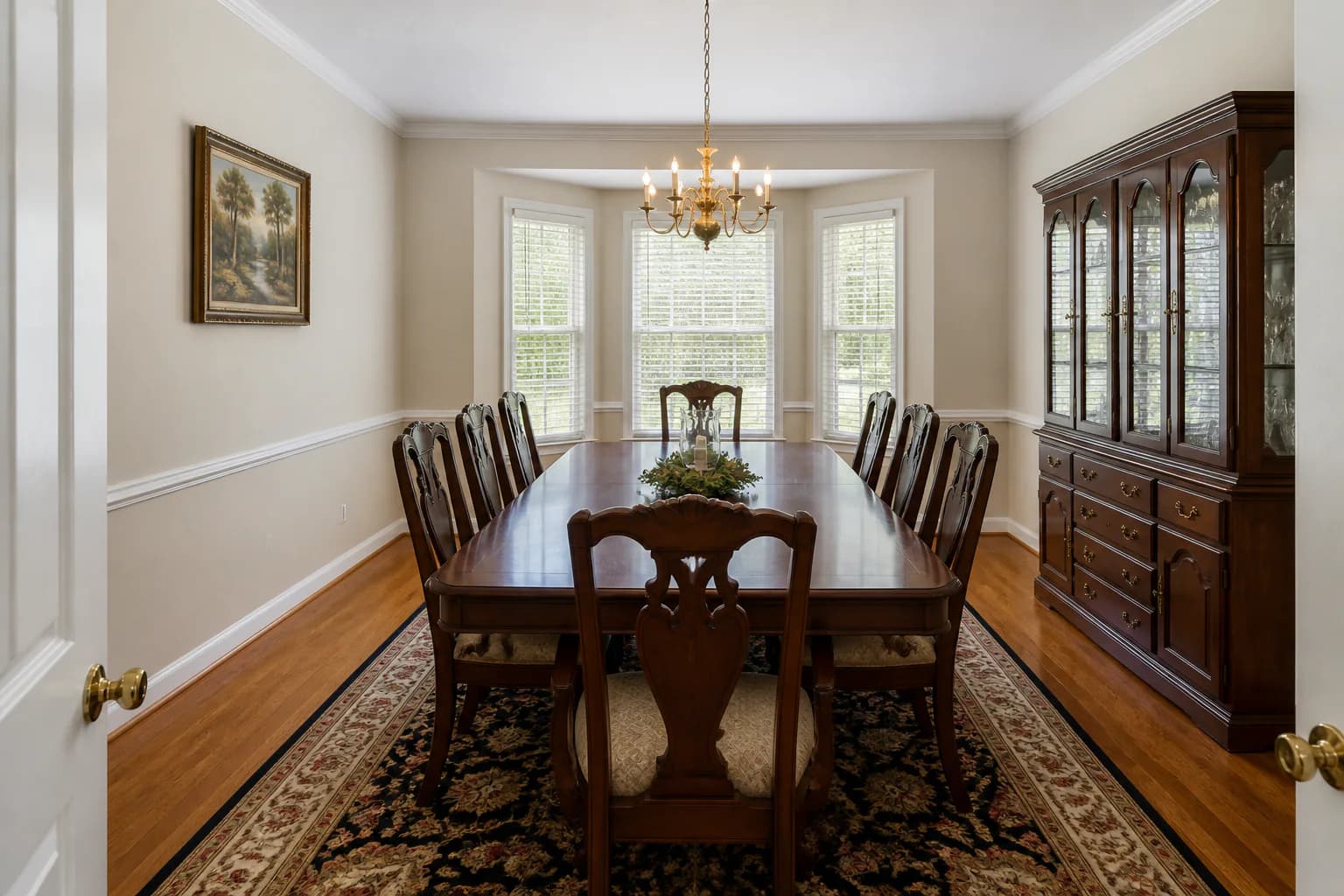
AI-generated dining room demonstration with large dark movable furnitureBefore
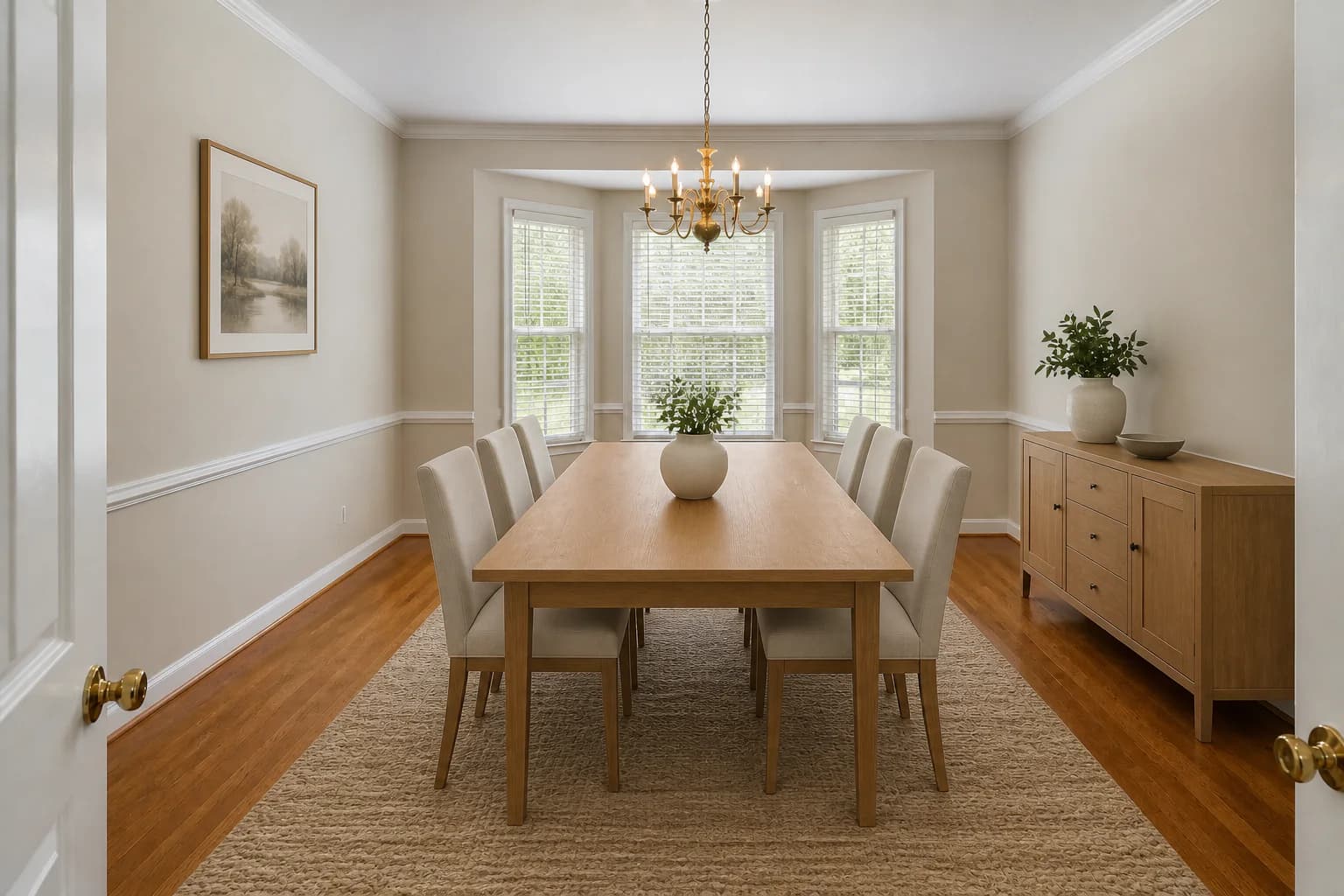
Same AI-generated room after dark furniture is removed and replaced with a lighter virtual dining setRemove + replace

AI-generated remove-and-replace demonstration. This is not a customer listing or a representation of actual StagingGPT output.

Choose the intended output

Removal-only vs. remove-and-replace

Both workflows start by removing movable items, but they answer different questions. Decide which deliverable you need before editing.

Removal-only

Show the room without movable items

Use this when the intended image is an empty room. The edit must plausibly reconstruct only what the furniture concealed and leave permanent finishes and features intact.

  • • Useful for cluttered or heavily furnished rooms
  • • Makes the existing room envelope easier to inspect
  • • Requires close review of reconstructed floors, walls, and trim

No removal-only image is shown here because the available demonstration pair represents remove-and-replace, not an empty-room result.

Remove-and-replace

Introduce a new movable furnishing plan

Use this when the current pieces distract from the room and a different virtual layout would better explain function or scale. Remove the selected items, then add appropriately sized furniture.

  • • Useful when styling is dated or visually heavy
  • • Communicates a possible layout and furniture scale
  • • Requires review of both reconstruction and new item placement
Read the virtual furniture staging guide

Edit boundaries

Remove movable items—not facts about the property

A cleaner image still needs to represent the photographed room. The most important review is not whether the result looks polished; it is whether the property remains accurate.

Appropriate targets

Freestanding sofas, beds, tables, chairs, rugs, lamps, artwork, boxes, and other movable decor.

Permanent features

Do not remove built-ins, fireplaces, windows, doors, columns, cabinetry, fixtures, or structural elements.

Visible condition

Do not erase damage, stains, cracks, wear, or other material conditions merely to make the property look newer.

Hidden surfaces

Treat reconstructed floor, wall, trim, reflections, and shadows as estimates that require comparison with the source.

Photo preparation and review

A practical furniture-removal workflow

  1. 1

    Prepare the source photograph

    Choose a sharp, level, well-lit image. Remove personal information and small loose objects physically when practical; cleaner inputs reduce the amount the edit must invent.

  2. 2

    Name every movable item to remove

    Be specific about the sofa, chairs, table, rug, lamps, wall art, or boxes. State which permanent features must remain unchanged.

  3. 3

    Choose empty or refurnished

    For removal-only, use Custom Prompt and name the movable items to remove. For remove-and-replace, choose Replace All Furniture and describe the new style, scale, focal point, and clear walking paths.

  4. 4

    Inspect the reconstructed surfaces

    Zoom into flooring patterns, baseboards, wall edges, windows, reflections, shadows, outlets, and transitions that were partly concealed.

  5. 5

    Compare, retain, and disclose

    Review beside the original, reject misleading changes, keep both files, and follow applicable MLS, platform, advertising, and local disclosure rules.

AI furniture removal FAQs

What does AI furniture removal do to a real estate photo?

It digitally removes selected movable items and reconstructs the visible surfaces behind them. The result needs careful review because the software must estimate areas of wall, floor, trim, or windows that were hidden in the source photo.

What is the difference between removal-only and remove-and-replace?

Removal-only aims to show the room as empty after selected movable items are removed. Remove-and-replace clears those items and introduces a new virtual furnishing concept. The second option is useful when you want to communicate both a cleaner presentation and a possible layout.

Can AI furniture removal fix property damage or change finishes?

That should not be the goal for a listing image. Furniture removal should not erase defects, repair damaged finishes, change flooring, move walls, alter windows, or create permanent features that are not present.

Which source photos work best for furniture removal?

Use sharp, level, well-lit photos with limited motion blur and a clear view around the objects being removed. Highly reflective rooms, objects crossing complex architectural details, and heavily obstructed surfaces require extra scrutiny.

Do furniture-removal edits need disclosure?

Policies vary by MLS, platform, and jurisdiction. Keep the original image, accurately describe the edit when required, and confirm the applicable advertising and disclosure rules before publishing.

Start with a clear editing goal

Remove distractions while preserving the room

Upload a property photo, use Custom Prompt for removal only or Replace All Furniture for a new design, and compare the edit closely with the original.

Try StagingGPT free